

How VisiWidget Helps Visitors Personalise Their Website Experience
Arabic and English controls for different browsing preferences
Digital Accessibility
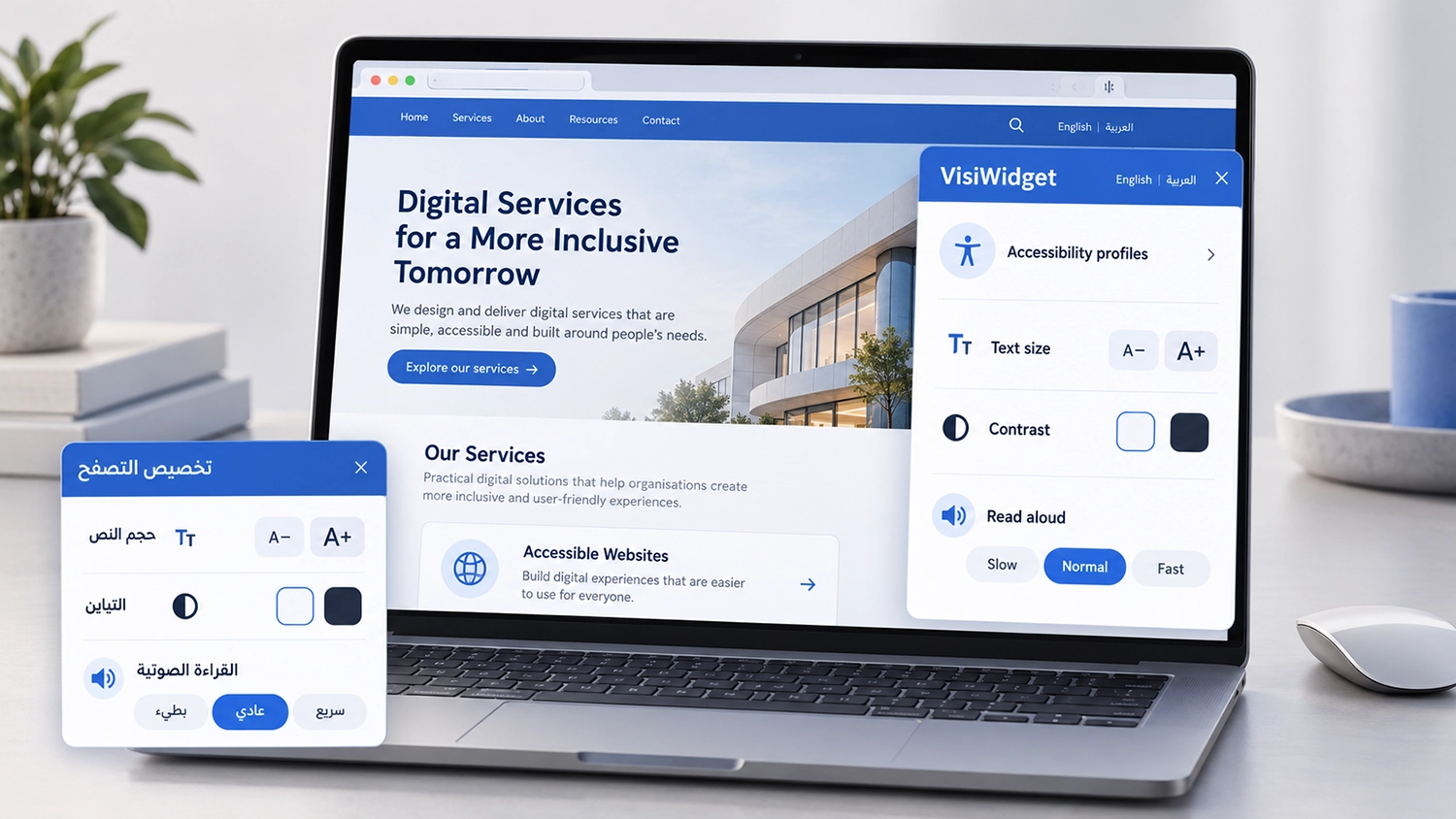
VisiWidget helps visitors personalise their website experience through Arabic and English controls, accessibility profiles, text and contrast adjustments, and read-aloud options. Instead of relying on a single presentation for every visitor, an organisation can offer useful choices within the page itself.
For a government portal, university or business website, these choices can support people who prefer larger text, a different contrast setting or spoken content. The value becomes clearer when the features are considered through everyday tasks: reading service requirements, reviewing information or following a long explanation. This article shows how VisiWidget can support those experiences and how teams should assess it on their own websites.
Why Visitor Personalisation Matters
People do not all read and interact with digital content in the same way. Preferences can depend on vision, reading comfort, familiarity with the language, the device and the immediate environment. A display that feels comfortable to one visitor may require adjustment for another.
Visitors may already use browser settings or assistive technology. In-page controls provide another route to selected adjustments; they should work alongside those existing tools. W3C guidance on the tools and techniques people use describes a wide range of ways people access digital content.
For website owners, the aim is to make useful options easy to discover and understand. Personalisation works best when it supports the content and the task, rather than becoming another interface the visitor has to struggle with.
VisiWidget Personalisation in Arabic and English
VisiWidget provides an interface in Arabic and English. This matters when a visitor wants to understand a setting before applying it, particularly on a bilingual website serving different audiences.
Review both interface languages in the context of your service. Visitors should understand the available choices and the effect of a selection. Clear language helps make the controls useful to someone who has never used an accessibility panel before.
The language of the widget’s controls and the language of the website are separate considerations. An Arabic settings interface does not translate an English service page. Organisations should continue providing appropriate Arabic and English content wherever their service requires it.
Apply a Group of Settings With an Accessibility Profile
An accessibility profile applies a predefined combination of settings through a single selection. This reduces the need to identify and activate each of those options individually and gives visitors a practical starting point.
For example, a visitor may prefer to begin with a prepared combination, then assess whether the resulting presentation suits the information they are reading. The useful question is whether the selected settings make that particular task easier to follow.
A profile should be understood through its actual settings rather than assumed to suit everyone with a particular disability. People with similar access needs can have different preferences. When demonstrating VisiWidget, show the changes produced by a profile and let visitors judge their usefulness.
Adjust Text for More Comfortable Reading
Text controls allow visitors to change the presentation of written content. A visitor reviewing eligibility requirements may benefit from a text setting that feels easier to follow, particularly on a long information page.
The adjustment should preserve the content. During evaluation, check headings, navigation, form instructions and action buttons as well as paragraphs. Look for text that overlaps another element, disappears or becomes difficult to reach after a setting changes.
WCAG guidance on resizing text explains the importance of retaining information and functionality. Widget controls and the website’s response to browser zoom should both be reviewed, because they are different ways of changing the viewing experience.
Choose a Contrast Setting That Suits the Visitor
Contrast controls offer alternatives to the page’s default presentation. Some visitors may find a different combination more comfortable when reading a service description or reviewing a list of requirements.
Test the result across the whole interface. Links, selected options, error messages, icons and keyboard focus indicators still need to be distinguishable. A change that improves paragraph text but hides a button’s label does not support the task.
Visitor choice adds flexibility, while the default website design still needs suitable contrast. The WCAG guidance on text contrast provides a technical reference for evaluating that baseline. Do not ask visitors to discover a special setting simply to read essential information.
Listen to Website Text at Three Reading Speeds
VisiWidget includes read-aloud options at normal, slow or fast pace. Visitors can choose a pace that suits how they want to follow the content, whether they prefer more time with an explanation or a quicker reading of familiar information.
Consider a page explaining the documents needed for an application. A visitor may find it useful to listen to the instructions while following the text. Another visitor may prefer reading without audio. Providing a choice allows the feature to support different preferences without imposing one reading method.
When assessing this feature, try representative Arabic and English text, names, dates and reference numbers on your actual website. Listen for clarity at each available pace. Language, content and the deployed reading environment can affect the experience, so use meaningful examples rather than testing a short generic sentence only.
Assess VisiWidget on Real Service Pages
A useful demonstration shows the same content before and after a setting is applied. Choose a service description, an article and a form so the review covers more than one layout. Test individual adjustments and the combinations offered through profiles.
Check whether visitors can find and operate the controls using relevant input methods, including a keyboard. Review the panel together with the service, making sure it does not obscure required actions or interfere with existing navigation.
Where possible, involve people with different access needs and preferences. Ask them to complete a clear task and explain which settings help or create friction. Record the page, language, configuration and observed behaviour so findings can guide changes.
Keep Personalisation Within a Wider Accessibility Programme
VisiWidget provides visitor-facing options, while the underlying website still needs accessible structure and interaction. A text adjustment does not establish that a form has meaningful labels or that a payment process works with assistive technology.
Read-aloud functionality also serves a different purpose from a screen reader’s full navigation and interaction capabilities. Assess both appropriately when they are relevant to your audience. Installation alone is not evidence of WCAG conformance; evaluation and remediation should address the actual service.
This distinction helps organisations use the product effectively: offer useful personalisation and maintain a clear process for identifying and resolving barriers in the website itself.
Frequently Asked Questions
Is VisiWidget Available in Arabic and English
Yes. VisiWidget provides Arabic and English interfaces for its visitor controls. Website content and translation remain separate responsibilities.
What Is an Accessibility Profile
It is a predefined combination of settings applied through one selection. Its value depends on the visitor’s preferences and how the resulting changes work with the page.
Which Read Aloud Speeds Does VisiWidget Offer
The available pace options are normal, slow and fast. Visitors can choose the pace they prefer when using the reading feature.
Does VisiWidget Replace a Professional Accessibility Audit
No. Personalisation and evaluation serve different purposes. An audit examines barriers and evidence in an agreed scope, while VisiWidget offers visitor controls.
How VisiAble Can Help
Explore VisiWidget with VisiAble to see how its Arabic and English controls, profiles and reading options fit your website. A demonstration using representative content can make the benefits easier for website owners and procurement teams to assess.
When your organisation also needs evidence about the underlying service, our professional accessibility audits can review an agreed scope of pages, components and user journeys. Our digital accessibility services also cover document and media accessibility, user testing, training and consulting.
Contact VisiAble to request a VisiWidget demonstration and discuss the needs of your visitors and website team.
Further Reading
Read about automated and manual accessibility testing and review our accessibility standards when planning broader evaluation work.